I Almost Dropped My Phone — Again
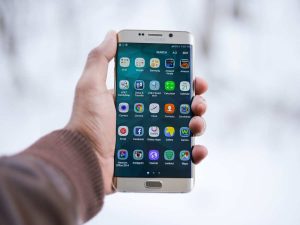
It happened while I was standing in a crowded market. One hand holding grocery bags, the other trying to reply to a message. My phone slipped slightly as I stretched my thumb to reach the top corner of the screen.
That moment of panic — when your heart skips because your expensive phone is about to hit concrete — is something most of us know too well.
Big screens look beautiful. Watching videos, reading articles, browsing apps — everything feels better on larger displays. But using them with one hand? That’s where things get frustrating.
For months, I struggled with this. I adjusted my grip, used awkward finger gymnastics, and even considered switching to a smaller phone. Then I discovered something that was already built into my device:
One-Handed Mode.
I had seen it in settings before, but I never thought I’d use it daily.
Now I can confidently say — it’s one of the most underrated smartphone features.
If you’ve ever struggled to reach the top of your screen, almost dropped your phone, or felt thumb strain, this article is for you.
The Real Problem With Large Smartphones
Modern smartphones are getting bigger every year. Edge-to-edge displays, taller aspect ratios, and minimal bezels look sleek — but they come with a usability trade-off.
Here’s what I experienced:
- Difficulty reaching top corners
- Accidental taps
- Phone slipping while stretching my thumb
- Mild thumb strain after extended use
- Slower typing while walking
When you’re commuting, holding coffee, carrying bags, or simply multitasking, using two hands isn’t always possible.
This isn’t about laziness. It’s about ergonomics.
Large screens weren’t designed with one-handed use as the primary goal. That’s why manufacturers introduced One-Handed Mode — but most people never activate it.
I was one of them.
What One-Handed Mode Actually Does
If you’ve never used it, here’s what it does in simple terms:
One-Handed Mode temporarily shrinks your screen so everything becomes reachable with your thumb.
Instead of stretching your hand upward, the display moves down (or reduces in size), making top icons, notifications, and search bars easier to access.
On Android, this feature is often built into system settings. On iPhones, it’s called Reachability and works within iOS.
On devices running Android, it’s usually located under System or Accessibility settings.
On devices using iOS, it’s enabled through Accessibility under Touch settings.
The feature is simple — but incredibly practical.
Why I Finally Turned It On
My turning point came after I started working more on my phone.
As someone who writes, edits, and manages content regularly, I often respond to messages, check analytics, and review drafts while standing or walking.
One day, I noticed mild discomfort in my thumb after long scrolling sessions.
It wasn’t serious — but it was a sign.
Instead of adjusting my grip constantly, I decided to explore One-Handed Mode properly.
And honestly, I wish I had done it earlier.
How I Enabled One-Handed Mode on Android
Here’s exactly what I did.
Step 1: Open Settings
I went to Settings and searched for “One-Handed Mode.”
If search doesn’t show it, try:
Settings → System → Gestures → One-Handed Mode
(Some devices place it under Accessibility.)
Step 2: Turn It On
There’s a simple toggle to enable it.
Once enabled, you can activate it by:
- Swiping down on the bottom edge (gesture navigation)
- Or using a specific shortcut depending on your device
Step 3: Adjust Display Settings
On many Android devices, you can choose:
- Shrink screen vertically
- Reduce screen size to one corner
I selected the vertical shrink option because it felt more natural.
After activation, the entire screen shifted downward, making top elements reachable instantly.
No awkward stretching.
No grip adjustments.
How to Enable Reachability on iPhone
If you’re using an iPhone, here’s how to activate it.
- Open Settings
- Go to Accessibility
- Tap Touch
- Enable Reachability
Once turned on, you activate it by:
- Swiping down on the bottom edge of the screen (Face ID models)
- Or double-tapping the Home button (older models)
The screen gently slides downward, allowing you to reach the top half comfortably.
It’s subtle — but effective.
How I Started Using It Daily
At first, I forgot it existed.
Habits are hard to change.
But I forced myself to use it in specific situations:
- While walking
- While carrying items
- During quick replies
- When browsing social media with one hand
Within a week, it became automatic.
Now, activating One-Handed Mode feels as natural as pulling down notifications.
Real-Life Situations Where It Helped Me
When Commuting
Standing in a bus or train, one hand holding support, the other holding the phone — this is where it shines.
Instead of risking a drop, I activate One-Handed Mode instantly.
While Grocery Shopping
Carrying bags in one hand? No problem. Quick payment checks, list viewing, or replying to messages become safer.
Late-Night Scrolling in Bed
We’ve all done it — lying on one side, scrolling with one hand.
Instead of adjusting grip constantly, the screen adapts to you.
During Quick Work Tasks
Replying to client messages or reviewing content while standing becomes smoother and faster.
Mistakes I Made When First Using It
I made a few small mistakes you can avoid.
Mistake 1: Turning It On Without Learning the Gesture
I enabled it but didn’t memorize the activation gesture.
Result? I forgot about it.
Solution: Practice activating it 10–15 times so it becomes muscle memory.
Mistake 2: Using It for Everything
One-Handed Mode is great — but not always necessary.
Watching videos or typing long emails is better in full-screen mode.
Use it strategically, not permanently.
Mistake 3: Ignoring Accessibility Settings
Some devices allow adjusting:
- Timeout duration
- Screen size
- Corner alignment
Customizing these settings improved the experience significantly.
How One-Handed Mode Reduced Accidental Drops
This was unexpected.
Before using it regularly, I often shifted my phone upward in my palm to reach the top.
That shift is risky.
Now, instead of moving my grip, I move the screen.
It’s safer.
After months of use, I noticed fewer near-drop moments.
That alone makes it worth enabling.
The Ergonomic Benefit Most People Ignore
We rarely think about thumb strain.
But large screens require repeated stretching motions.
Over time, this can cause discomfort.
Using One-Handed Mode reduces:
- Thumb extension strain
- Awkward wrist angles
- Excessive grip adjustments
It’s a small adjustment — but ergonomics matter, especially if you use your phone for hours daily.
Advanced Tips to Use One-Handed Mode Smarter
After months of daily use, here’s what I recommend.
Combine It With Gesture Navigation
Gesture navigation makes activation smoother compared to button navigation.
If your phone supports it, enable gesture navigation for faster access.
Pair It With Quick Reply Features
If you often respond to messages quickly, combine One-Handed Mode with floating chat bubbles or quick reply notifications.
This makes one-handed multitasking extremely efficient.
Adjust Display Timeout
Some phones automatically revert after a few seconds.
Extend the timeout slightly so you don’t have to re-enable it repeatedly.
Who Should Definitely Use One-Handed Mode
Based on my experience, this feature is ideal for:
- People with large-screen phones
- Commuters
- Parents holding children
- Professionals multitasking on the go
- Anyone experiencing thumb strain
- Users who frequently text while walking
If your phone is 6.5 inches or larger, chances are you’ll benefit from this feature.
Why Most People Never Use It
Here’s the honest truth:
- It’s buried in settings
- It’s rarely explained
- People forget it exists
- It sounds like an accessibility-only feature
But accessibility features are often practical for everyone.
Just because something is labeled under Accessibility doesn’t mean it’s only for specific users.
Many of the most useful smartphone tools are hidden there.
Did It Change My Daily Phone Usage?
Yes — but subtly.
It didn’t transform my life.
It didn’t magically increase productivity.
But it made everyday phone use smoother, safer, and more comfortable.
And sometimes, small improvements matter more than flashy features.
I now activate it without thinking.
That’s when you know a feature truly fits into your daily routine.
FAQs About One-Handed Mode
1. Does One-Handed Mode affect performance?
No. It simply resizes or shifts the screen temporarily. It doesn’t slow down your phone.
2. Can I use it with all apps?
Yes. It works system-wide in most cases, including messaging, social media, and settings.
3. Does it drain battery faster?
No noticeable battery impact. It’s just a display adjustment.
4. Can I customize screen position?
On many Android devices, yes. You can choose alignment or shrink style.
5. Is it only for people with small hands?
Not at all. It’s useful for anyone using large-screen smartphones, regardless of hand size.
Final Thoughts: A Small Feature That Solved a Real Problem
I used to think I just needed to “adjust better” to bigger screens.
But the truth is, your phone should adapt to you — not the other way around.
One-Handed Mode isn’t flashy.
It’s not trendy.
It doesn’t get promoted heavily.
But it solves a real, everyday problem.
If you’ve ever:
- Struggled to reach the top of your screen
- Almost dropped your phone
- Felt thumb discomfort
- Juggled tasks while multitasking
Take two minutes.
Go into settings.
Turn it on.
Practice using it.
Give it a week.
You might find, like I did, that something so small makes your daily phone experience noticeably better.
And sometimes, the features we ignore are the ones we end up using every single day.