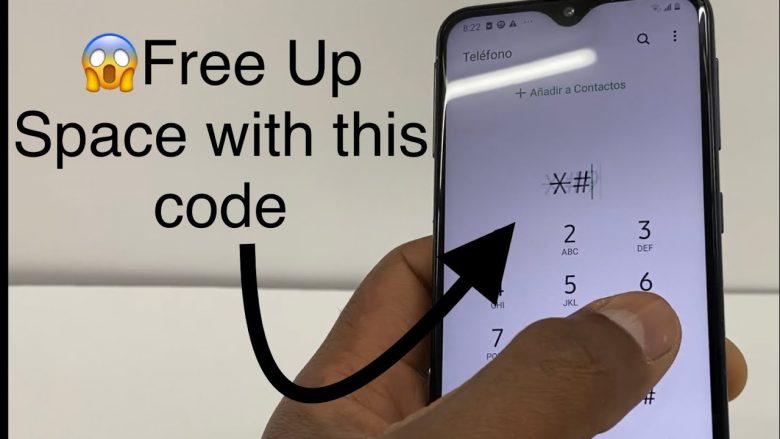
Nothing is more frustrating than your phone alerting you that storage is full, just when you want to take a photo, download an app, or save a file. Full storage not only prevents new files from being saved but also slows down your phone, making apps lag and the device feel sluggish.
The good news is that most storage issues can be solved without upgrading your device. In this guide, I’ll share step-by-step solutions, practical tips, and personal-tested strategies to free up space, manage files efficiently, and prevent your phone from constantly hitting storage limits.
Why Phones Run Out of Storage
Understanding why storage fills up is the first step in fixing the problem. Common causes include:
-
Photos and Videos: High-resolution images and videos can quickly occupy gigabytes of storage.
-
Apps: Large apps or games consume more space than expected. Some apps cache large amounts of data over time.
-
Temporary Files and Cache: Apps store temporary files to improve speed, but these can accumulate over months.
-
Downloads and Media: PDFs, music, movies, and documents often go unnoticed and occupy space.
-
Messaging Apps: WhatsApp, Telegram, and other chat apps store media files automatically.
-
Duplicate or Old Files: Old files, screenshots, and duplicates clutter storage silently.
-
System Storage: Operating system updates and default apps take space that cannot be removed.
Step-by-Step Fixes for Full Storage
1. Check Storage Usage
Before deleting anything, see what’s consuming space.
-
Android: Settings → Storage → View storage usage by category
-
iOS: Settings → General → iPhone Storage
This helps you identify whether photos, apps, or system files are the main culprits.
2. Delete Unused Apps
Apps you rarely use may be taking up significant space.
-
Review all installed apps
-
Uninstall apps you don’t use
-
Consider alternatives: web versions of services instead of heavy apps
Tip: On Android, you can offload unused apps without losing data. On iOS, use “Offload Unused Apps” to remove the app but keep documents and data.
3. Clear App Cache and Temporary Files
Cached data speeds up apps but can accumulate unnecessarily.
-
Android: Settings → Apps → Select app → Storage → Clear Cache
-
iOS: Delete and reinstall apps to clear cache (iOS does not allow manual clearing)
Focus on apps that use the most cache, like social media, streaming, or navigation apps.
4. Manage Photos and Videos
Photos and videos are usually the largest space consumers.
-
Delete blurry or duplicate images
-
Use cloud storage (Google Photos, iCloud, OneDrive)
-
Enable “Optimize Storage” to store lower-resolution copies on your device while keeping originals in the cloud
-
Transfer media to an external drive or PC
Tip: Back up videos to cloud storage instead of keeping large files on your phone.
5. Remove Old Downloads
Downloads often get forgotten:
-
Open your Downloads folder
-
Delete PDFs, APKs, or other files you no longer need
-
Regularly review and clean this folder
This simple step can free up hundreds of MBs quickly.
6. Use Cloud Storage and Streaming
Instead of downloading files, stream or store them online:
-
Music: Spotify, YouTube Music, or Apple Music
-
Videos: Netflix, Amazon Prime Video, or YouTube
-
Documents: Google Drive, Dropbox, or iCloud
Cloud storage keeps your phone storage minimal while keeping files accessible.
7. Clear Messaging App Media
Messaging apps often save images, videos, and audio automatically:
-
WhatsApp/Telegram: Settings → Data & Storage → Manage storage
-
Delete large or unnecessary files
-
Limit automatic media downloads to save space
Tip: Backup important media to cloud storage before deleting.
8. Remove Duplicate or Old Files
Duplicate images, documents, and music take up unnecessary space:
-
Use apps like Google Files (Android) to find duplicates
-
Manually review folders for old screenshots, documents, or videos
9. Manage Offline Files
Offline maps, podcasts, and playlists consume storage:
-
Delete offline maps in Google Maps or Apple Maps when not needed
-
Remove downloaded podcasts or playlists from Spotify, Apple Music, or YouTube Music
10. Reduce System Storage Usage
-
Clear browser cache (Chrome, Safari)
-
Disable auto-downloads of email attachments or cloud sync
-
Remove unused widgets or live wallpapers
System cleanup can reclaim additional space.
11. Use Storage Optimization Tools
-
Android: Google Files app offers cleaning recommendations
-
iOS: iPhone Storage menu suggests apps to offload and large files to remove
These tools simplify the cleanup process and highlight files you may have overlooked.
12. Factory Reset (Last Resort)
If storage remains full despite cleaning, a factory reset may help:
-
Backup all essential data first
-
Android: Settings → System → Reset → Factory Data Reset
-
iOS: Settings → General → Transfer or Reset iPhone → Erase All Content
A reset restores your device to like-new conditions, often freeing hidden storage used by corrupted files or apps.
Preventing Storage Problems
-
Regularly delete unused apps and media
-
Use cloud storage for photos, videos, and documents
-
Limit auto-downloads in messaging and streaming apps
-
Clear cache periodically
-
Monitor storage usage monthly
-
Enable storage optimization features like “Offload Unused Apps” (iOS) or Google Files recommendations (Android)
Common Mistakes That Fill Storage
-
Saving all photos and videos locally without backups
-
Installing too many apps without review
-
Ignoring messaging app media accumulation
-
Not deleting old downloads and temporary files
-
Using offline files unnecessarily
Avoiding these mistakes keeps storage manageable.
Tips for Older Phones with Limited Storage
-
Prioritize cloud storage for media
-
Use lightweight apps or Lite versions (Facebook Lite, Messenger Lite)
-
Delete large app data or offline files regularly
-
Limit system animations and background processes
-
Consider microSD cards if supported (Android only)
Even phones with small storage can feel faster with careful management.
Benefits of Freeing Up Storage
-
Faster app launch and smoother multitasking
-
Reduced system lag and fewer crashes
-
Ability to save new files, photos, or apps without worry
-
Improved battery life as fewer processes run in the background
-
Enhanced device longevity and overall performance
Final Thoughts
Full storage is a common problem, but it’s usually preventable and fixable. By cleaning temporary files, managing apps, offloading media to the cloud, and monitoring usage, you can free up significant space. Regular maintenance not only prevents storage alerts but also improves your device’s speed and reliability.
With these tips and strategies, even beginners can take control of their phone storage, enjoy better performance, and never worry about running out of space again.