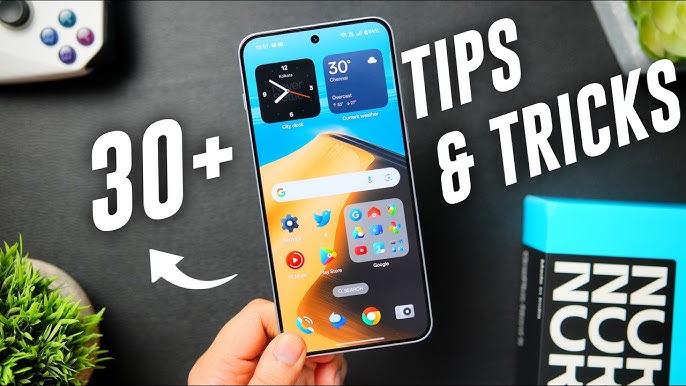
A few years ago, my phone started feeling slow and frustrating. Apps took longer to open, notifications were overwhelming, and simple tasks like copying text or switching between apps felt inefficient.
I assumed the solution was simple: buy a new phone.
But before doing that, I started exploring the settings and hidden features built into the device. Within an hour, I discovered tools I had never used before—gesture shortcuts, screen recording, app pinning, quick screenshot tricks, and automation features.
The surprising part? These tools had been available on my phone since the day I bought it.
Most people use only 30–40% of what their devices can actually do. Phones, apps, and operating systems include many hidden features designed to make everyday tasks faster and easier—but they often stay unnoticed.
In this guide, I’ll share practical hidden features and smart tricks that can improve how you use your phone, apps, and digital tools. These are real tips that helped me save time and make technology feel less frustrating.
Why Most People Miss Hidden Features
Modern apps and devices are designed to be simple. While this makes them easier to use, it also hides powerful functions deeper in menus.
Many users never explore settings because they assume they are too technical or unnecessary.
In reality, hidden features can help you:
-
Work faster
-
Improve privacy and security
-
Save battery life
-
Reduce distractions
-
Automate repetitive tasks
Learning a few of these tricks can transform how you interact with technology daily.
Step-by-Step Smart Tricks You Should Start Using
1. Use Gesture Shortcuts to Save Time
Most smartphones support gesture navigation that replaces traditional buttons.
Instead of tapping multiple buttons, you can navigate with simple swipes.
Common Gesture Examples
-
Swipe up to return to the home screen
-
Swipe from the edge to go back
-
Swipe up and hold to open recent apps
-
Double tap the screen to wake the device
Once I switched to gesture navigation, moving between apps became noticeably faster.
It may feel strange at first, but after a few days it becomes second nature.
2. Quick Screenshot Tricks
Taking screenshots is useful for saving information, but many people only know the basic method.
Most phones support faster options.
Smart Screenshot Features
-
Three-finger swipe to capture the screen
-
Long screenshot to capture an entire webpage
-
Screenshot editing tools immediately after capture
Long screenshots are especially useful when saving:
-
Articles
-
Chat conversations
-
Online receipts
Instead of taking multiple images, you capture everything in one scrollable screenshot.
3. Built-in Screen Recording
Many people download screen-recording apps without realizing their device already has one built in.
Screen recording is helpful for:
-
Saving online tutorials
-
Reporting app bugs
-
Recording gameplay
-
Creating quick guides for friends or coworkers
You can usually activate screen recording from the quick settings panel.
This feature became incredibly useful for me when explaining technical issues to others.
Instead of typing long messages, I simply recorded the screen.
4. App Pinning for Privacy
Sometimes you hand your phone to someone—for example, to show a photo or video.
But that person could accidentally open other apps.
App pinning solves this problem.
What App Pinning Does
It locks the device to one specific app, preventing access to everything else.
To exit the pinned app, a password or gesture is required.
This is perfect when:
-
Showing photos
-
Letting kids play games
-
Sharing your phone temporarily
Once I discovered this feature, I felt much more comfortable handing my phone to others.
5. Hidden One-Hand Mode
Large smartphones can be difficult to use with one hand.
Many devices include a one-hand mode that shrinks the screen temporarily.
Benefits
-
Easier typing
-
Better accessibility
-
Faster navigation
This feature is often activated by swiping down on the navigation bar or using a gesture.
It’s small but extremely helpful when multitasking.
Smart App Tricks That Improve Everyday Use
Use App Search Instead of Scrolling
Instead of manually searching for apps across multiple home screens, use the built-in search bar.
Just type the app name and launch it instantly.
This saves time and reduces clutter.
Enable Dark Mode
Dark mode isn’t just about appearance.
It can also:
-
Reduce eye strain
-
Improve battery life on OLED screens
-
Make nighttime phone use more comfortable
Most apps now support dark mode, and enabling it system-wide ensures consistency.
Customize Notifications
Notifications can quickly become overwhelming.
Instead of disabling them entirely, customize them.
Practical notification settings
-
Silence social media alerts
-
Keep important messages active
-
Disable promotional notifications
This dramatically reduces distractions during the day.
Productivity Tricks Many Users Overlook
Split Screen Multitasking
Most smartphones allow two apps to run simultaneously.
This is useful when:
-
Watching a video while taking notes
-
Reading an article while messaging someone
-
Comparing information between apps
It’s especially helpful for students and remote workers.
Clipboard History
Some devices store clipboard history, allowing you to paste previously copied text.
Instead of copying the same text repeatedly, you can access multiple saved entries.
This is helpful for:
-
Email responses
-
Addresses
-
Frequently used messages
Voice Typing
Typing long messages on a phone can be slow.
Voice typing converts speech into text quickly and surprisingly accurately.
It’s useful when:
-
Writing long messages
-
Taking quick notes
-
Responding while multitasking
Once I started using voice typing regularly, I noticed how much faster it was than typing.
Mistakes People Make When Ignoring Hidden Features
Many users limit their device’s potential by overlooking built-in tools.
Here are some common mistakes.
Installing Too Many Apps
People often download extra apps for functions their phone already supports.
Examples include:
-
Screen recording apps
-
Flashlight apps
-
File managers
-
QR scanners
Built-in tools are usually safer and optimized for the device.
Never Exploring Settings
Many useful features are only a few taps away inside the settings menu.
Taking 10 minutes to explore settings can reveal powerful options.
Ignoring Accessibility Features
Accessibility tools are designed to help everyone—not just users with disabilities.
Some features include:
-
Larger text
-
Voice control
-
Magnification tools
-
Color filters
These tools can make devices easier and more comfortable to use.
Real Example: A Small Trick That Saved Me Hours
One hidden feature that completely changed my workflow was clipboard history.
I frequently send similar messages when sharing links or instructions.
Previously, I typed them repeatedly.
Once I enabled clipboard history, I could copy several templates once and reuse them anytime.
It sounds simple, but it saved a surprising amount of time every week.
Sometimes the smallest tech tricks make the biggest difference.
Frequently Asked Questions (FAQs)
1. Are hidden phone features safe to use?
Yes. These features are built directly into the operating system and are designed to improve usability and performance.
2. How can I find hidden features on my device?
Explore the settings menu, search for specific features in system settings, or check the quick settings panel for available tools.
3. Do hidden features slow down the phone?
No. Most features are optimized by the device manufacturer and have minimal impact on performance.
4. Can hidden features improve battery life?
Yes. Features like dark mode, battery saver, and background app control can extend battery life.
5. Do all smartphones have the same hidden features?
No. Features vary depending on the operating system and manufacturer, but many core tools are similar across devices.
Conclusion: Small Tech Tricks Can Make a Big Difference
Technology often feels complicated, but many frustrations come from not knowing the tools already available.
Hidden features and smart tricks can simplify everyday tasks, save time, and improve how you interact with your devices.
Instead of downloading dozens of apps or struggling with repetitive tasks, take time to explore the capabilities already built into your phone.
When I started doing this, I realized something important:
Your device is probably far more powerful than you think.
Learning just a few hidden features can transform how efficiently—and comfortably—you use technology every day.